Best F1 25 Controller Settings: Ultimate Pad Calibration Guide for PS5 & Xbox
A practical, baseline-first guide to calibrating F1 25 controller settings. We provide exact starting values and a repeatable test loop to fix common issues like snap oversteer and poor traction, helping pad players compete with wheel users.
Controls & Hardware · EN · Updated · 7 min read

On this pageTap to expand
Why Your Controller Settings Matter in F1 25
Finding the best F1 25 controller settings is more critical than ever. The game's updated physics and handling model demand a higher level of precision, especially for gamepad users trying to manage tire wear and tame oversteer. Common frustrations like twitchy steering on straights, snap oversteer when exiting corners, and constantly locking brakes can often be traced back to uncalibrated controls. This guide provides a clear, step-by-step method to move from a stable baseline to a personalized setup that suits your driving style, giving you the consistency needed to compete.
Baseline Controller Settings: Your Starting Point for Calibration
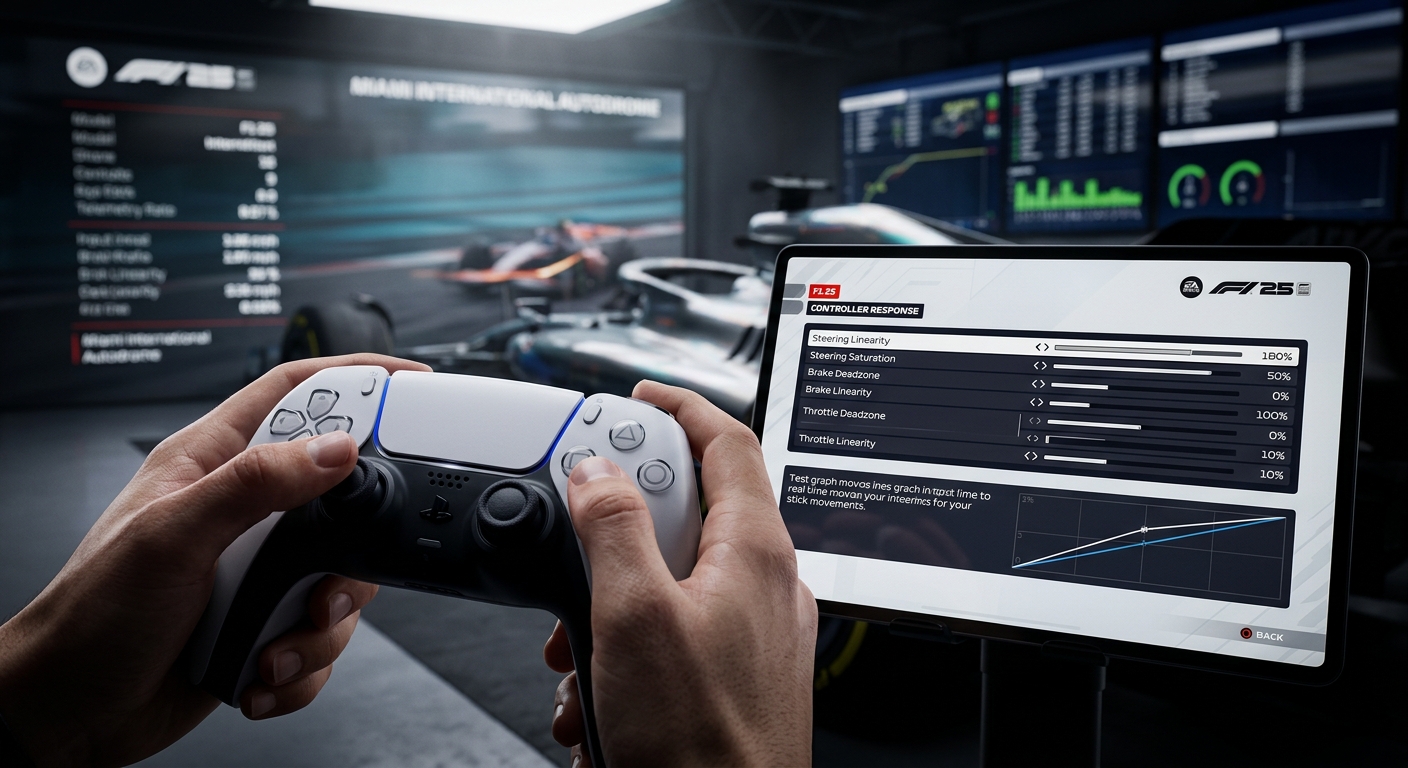
Before you start fine-tuning, you need a stable foundation. The goal of a baseline is not perfection, but predictability. These initial settings are designed to be conservative, making the car easier to handle while you get a feel for the calibration process. We will adjust each of these values methodically in the following sections. Apply these as your starting point in the 'Calibration' menu.
The 3-Lap Test Loop: How to Tune Your Settings
Consistency is key to effective calibration. Making random changes without a structured test will leave you chasing a feeling you can't replicate. Use this simple 3-lap test loop to evaluate every adjustment you make.
- Choose a familiar track: Pick a circuit you know well, like Miami or Silverstone. Use Time Trial mode with a default setup to ensure consistency.
- Set your baseline: Apply the initial settings and drive 3-5 consecutive laps. Focus on smoothness and identifying specific problems, like instability in fast corners or difficulty hitting apexes in slow ones.
- Adjust one setting at a time: Go back to the menu and change only ONE setting by a small increment (e.g., increase Steering Linearity by 5). Changing multiple things at once makes it impossible to know what helped or hurt.
- Re-test and evaluate: Drive another 3-5 laps. Did the change solve your problem? Did it create a new one? If the change was positive, keep it. If not, revert it. Repeat this process for each setting.
Steering Calibration: Tuning Linearity and Saturation
Smooth steering is the foundation of clean, fast laps. The small throw of a joystick makes it easy to apply too much input, unsettling the car. Fine-tuning these sliders is key to finding the best F1 25 controller settings for your driving style.
- Steering Linearity: This makes the joystick less sensitive around its center. If your steering feels twitchy on straights or you're constantly making tiny, jerky corrections in fast corners, increase linearity. Over-correction will make the car feel unresponsive and slow to turn in.
- Steering Saturation: This determines how far you have to push the stick to achieve maximum steering lock. If you struggle to get the car turned into tight hairpins, increase saturation. Over-correction will make the steering feel overly sensitive and darty, especially at high speed.
- Steering Deadzone: This creates a small neutral area around the center of the stick where no input is registered. Its only purpose is to fix 'stick drift' where the car veers slightly on its own. Increase this value by 1 until the drifting stops. Setting it too high will create a noticeable delay before your steering inputs register.
Throttle & Brake Calibration: Mastering Traction and Stopping
For gamepad users, the short travel of the triggers makes modulating the throttle and brakes the biggest challenge. Proper calibration is your best tool for managing wheelspin and avoiding lock-ups without relying solely on assists.
💡Focus on Smoothness
Your goal with these settings is to make it easier to be smooth. A higher linearity value on the throttle, for example, gives you more fine control in the first 50% of the trigger pull, which is exactly where you need it to avoid wheelspin out of a corner.
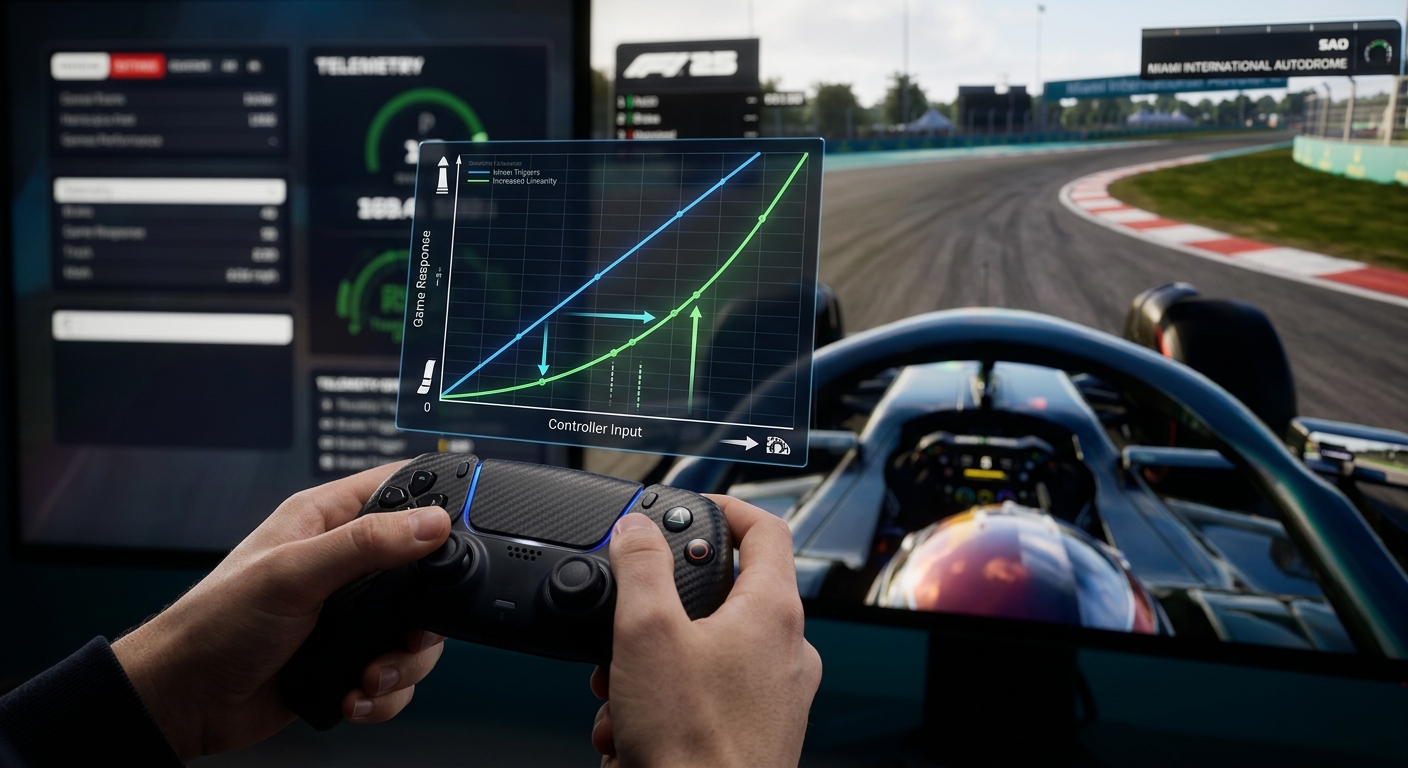
Increase Throttle Linearity if you constantly spin the rear tires when accelerating out of slow corners. This adjustment makes the initial part of the trigger pull less sensitive, giving you a wider band for gentle power application. If you go too high, the throttle will feel sluggish and unresponsive. For the brakes, increasing Brake Linearity helps prevent lock-ups under heavy braking by requiring a harder squeeze for maximum pressure. This gives you more control to trail-brake effectively into corners.
On-Track Scenario: Why Calibration Matters for Car Setups
Proper controller calibration doesn't just make the car feel better; it unlocks the ability to feel and exploit subtle differences in car setups. A perfect example can be found by comparing qualifying and race setups for the same track.
Consider two controller-focused setups for Miami. The qualifying setup uses an Off-Throttle Differential of 20%, while the race setup uses 25%. This small 5% change has a significant on-track effect. The lower 20% value allows the car to rotate more freely when you lift off the throttle, helping you pivot the car aggressively into slow corners to shave off crucial tenths on a single hot lap. However, this can make the car feel edgy and unstable over a long race distance. The higher, more stable 25% setting in the race setup sacrifices that peak rotation for predictability, helping you save the tires and avoid mistakes.
Without well-calibrated steering and throttle controls, your inputs will be too coarse to feel this difference. You might find the qualifying setup simply 'snappy' and uncontrollable, when in reality, it's a tool that requires precise inputs to use effectively. Good calibration allows you to feel what the setup is doing and adapt your driving to maximize its potential.
Feel the Difference in Miami
Try these two setups back-to-back in Time Trial to understand how a small change in the differential setting impacts corner entry rotation.
Miami — F1 25 Qualifying SetupRace-Ready Stability
Load this race setup to feel how a more locked differential provides stability and predictability over a full race stint.
Miami — F1 25 Race SetupFAQ
Should I turn off all assists with a controller?
It's best to do it gradually. Start with assists you're comfortable with, like Medium Traction Control and ABS On. As you calibrate your controller to be smoother, you can try lowering TC to Low or turning ABS off. The goal is to find the combination that makes you fastest and most consistent, not to play on the hardest settings for the sake of it.
Do these settings work for both PS5 and Xbox controllers?
Yes. The principles of linearity, saturation, and deadzone apply universally to the analog sticks and triggers on any modern gamepad. While the feel of the hardware might differ slightly, the calibration process and what each setting adjusts in-game are identical.
Why does my car still feel twitchy even with high linearity?
Controller settings are only one part of the equation. If your car is still too sensitive, check your car setup. High front wing aerodynamics or an aggressive front suspension geometry can also contribute to a twitchy front end. Your controls and your car setup must work together.
Final Recommended Controller Settings Table
After following the iterative test loop and fine-tuning each setting to address specific symptoms, you will arrive at the best F1 25 controller settings for your personal driving style. The table below represents a balanced starting point that our editors will populate with exact values, aimed at providing a blend of responsiveness and stability for most players.
F1 25 Controller Calibration Values
| Parameter | Recommended Value | Notes |
|---|---|---|
| Steering Rate | 130% | Community varies (115-140%) |
| Steering Deadzone | 0 | Increase to 1-5 if stick drift occurs |
| Steering Linearity | 40 | Community varies (30-40) |
| Steering Saturation | 35 | Community varies (0-35) |
| Throttle Deadzone | 0 | Increase to 1-2 if unintended input |
| Throttle Linearity | 0 | Community varies (0-60) |
| Throttle Saturation | 0 | Community varies (0-20) |
| Brake Deadzone | 0 | Increase to 1-2 if unintended input |
| Brake Linearity | 0 | Community varies (0-30) |
| Brake Saturation | 0 | Community varies (0-20) |
Keep exploring
Continue from this guide with related hubs and circuit pages.
Related setups
Apply the knowledge from this guide with a ready-made setup.